Playing TryToAct on mobile or PC: guide and FAQ
iPhone, Android, laptop or desktop: TryToAct runs everywhere, right in your browser. Mic, headphones, sound, cross-device multiplayer… here are the answers to everything people ask us.
Does TryToAct work on mobile and PC?
Yes. TryToAct is a dubbing game that you play right in your browser, on a phone, tablet, laptop or desktop. There is nothing to download or install: open trytoact.com, sign in and play. The site adapts to your screen size on its own.

The game is the same everywhere: the same scene packs, the same multiplayer, the same wardrobe. Only a few small things change from one device to another, mainly how sound is handled while you record. Here is how it all works.
Do I need to download an app?
No. There is no TryToAct app on the App Store or Google Play, and you do not need one. For one-tap access on your phone, add the site to your home screen from your browser's share menu: a TryToAct icon will sit right next to your apps.
Which browser should I use?
Any recent browser works: Chrome, Safari, Edge or Firefox. What matters most is that it is up to date, because voice recording and video export rely on recent browser features. If something does not work, updating your browser is the first thing to try.
What do I need to play?
• A mic: the one built into your phone or computer is enough to get started. A headset or earbuds with a mic give you cleaner sound.
• An account: sign in with one click using Google, Discord or Twitch. It is free, and it keeps your dubs, coins and daily quests in sync across your devices.
• An internet connection: scenes are videos, so decent Wi-Fi or 4G/5G avoids loading delays.
That is it. TryToAct is free: every scene and every game mode is available without paying.
Is my progress the same on mobile and PC?
Yes, as long as you use the same account. Everything is tied to your account, not your device: start the day on your phone, pick it up again on your PC in the evening, and your dubs, coin balance, wardrobe items and spot on the leaderboard will all be there.
How do I allow the mic?
The first time you start a recording, your browser asks for permission to use the mic. Just accept. If you refused by mistake, TryToAct shows the message "Mic access blocked. Allow it in your browser to play." Here is how to turn it back on:
• On PC (Chrome, Edge): click the icon to the left of the site address, set "Microphone" to "Allow" and reload the page. Google walks you through it in its help page on using the mic in Chrome.
• On iPhone and iPad (Safari): tap the "aA" button or the settings icon in the address bar, open the website settings and allow the microphone. You can also go through Settings, then Safari, then Microphone.
• On Android (Chrome): tap the icon to the left of the address, then "Permissions", and turn on the microphone.
On iPhone, Safari may ask for permission again after a while: that is normal, just accept again.
Playing on mobile: what to know
On a phone, the recording screen is built for one-handed play: a bar pinned to the bottom of the screen holds everything you need during a scene, listen to the original, record, play back your take and move on. The video always stays in view, no scrolling needed.
Why can't I hear the scene while I record?
That is on purpose. On a phone, as soon as the mic turns on, the system (iOS especially) lowers the volume and routes the sound to the earpiece, the one you use for calls. The scene would sound tiny, like a phone call. To keep your take sounding good, TryToAct mutes the video while you record on mobile: the picture keeps playing so you can follow the characters' lips.
Our tip: listen to the line once or twice with the listen button before you record, so you have the rhythm in your head. And hold the phone instead of leaving it on the table: your voice will come through clearer.
How do I save my video to my camera roll?
When your dub is done, the download button opens your phone's share menu. Choose "Save video" to find it in your photos, or send it straight to your friends in your messaging apps.
Playing on PC: the extra settings
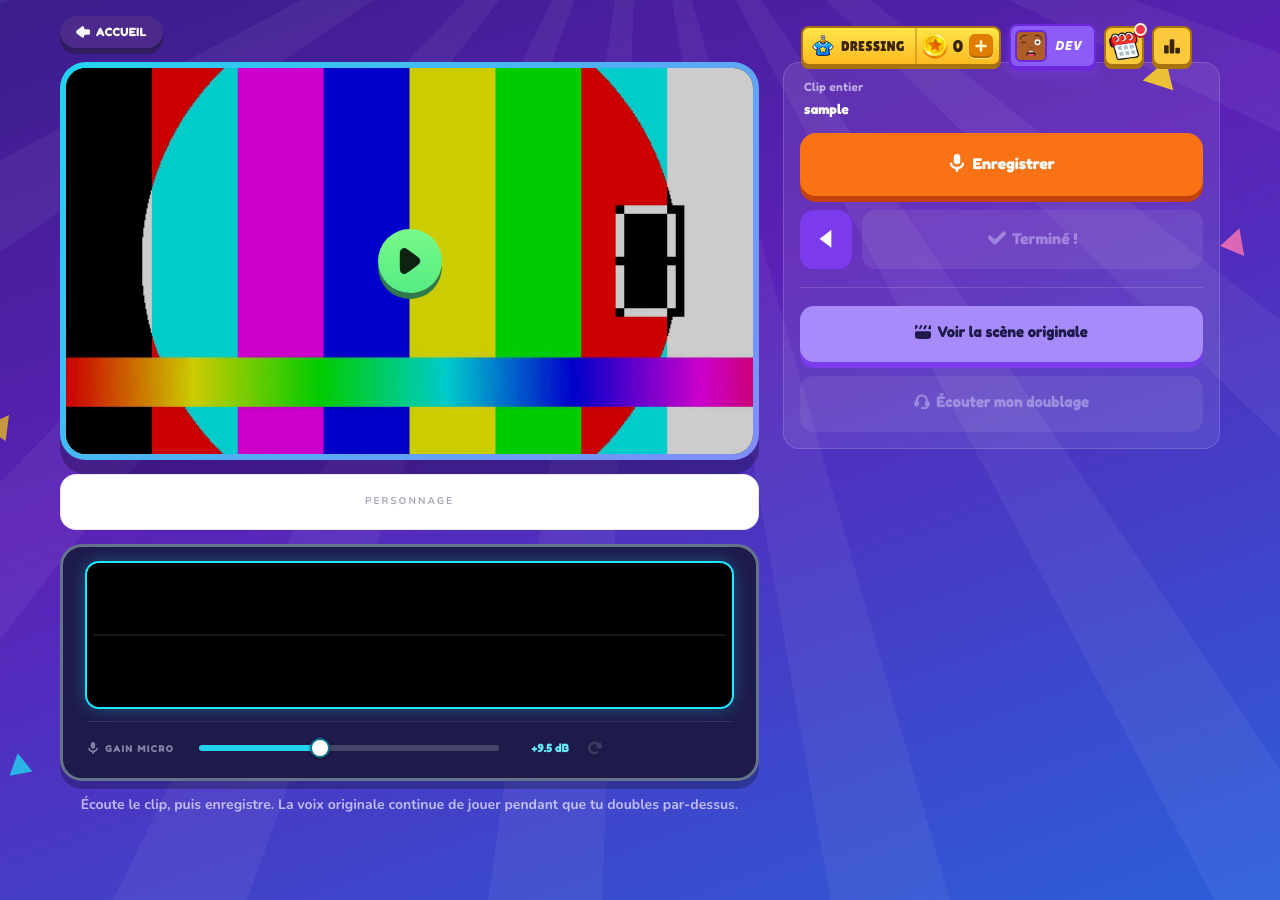
On a computer, the recording screen shows all the controls at once, along with the scene's timeline. It is also where you get a few extra settings, from the gear icon on your profile:
• Pick your mic: if you have a USB mic, a headset or a webcam plugged in, choose the one you want instead of the default system mic.
• Set the mic volume: right on the recording screen, so your voice is neither too quiet nor distorted.
• Headphone monitoring: hear yourself live while you dub, like in a studio. Only use it with headphones, otherwise the sound from your speakers goes back into the mic and creates echo or even audio feedback.
• Streamer mode: hides lobby codes and invite links, handy if you play live on Twitch or YouTube.
On PC and mobile alike, you can add voice filters to your takes to play a giant or a character on the phone.
Do I need headphones?
They are not required, but we strongly recommend them on PC. With speakers, the mic also picks up the scene's sound, which can put echo in your take. Any pair of headphones or earbuds fixes that.
Can players on mobile and PC play together?
Yes! Multiplayer works across every device: a friend on iPhone, another on Android and you on PC can all be in the same room. Just share the room's code or invite link. Public games take up to 4 players.
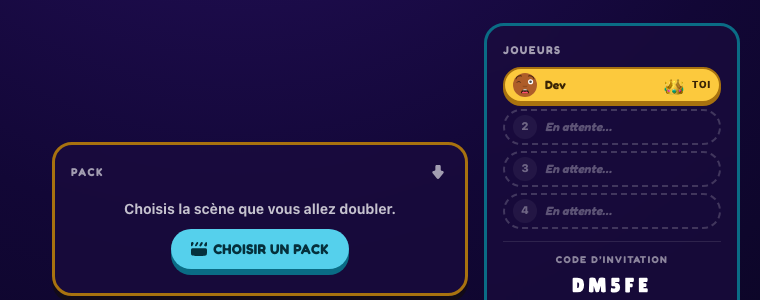
For a game night with friends in the same room, everyone can play on their own phone: headphones or earbuds for each player cut down on echo when everyone records at once.
Mobile or PC: which one should you pick?
- Mobile
Perfect for a quick scene, a multiplayer game with friends, or sharing your dubs straight to your socials and group chats.
- playing anywhere
- Best for
- PC
More comfortable for long packs, fine-tuning your audio (mic choice, headphone monitoring) and above all for creating your own packs, thanks to the big screen and the mouse.
- long sessions
- Best for
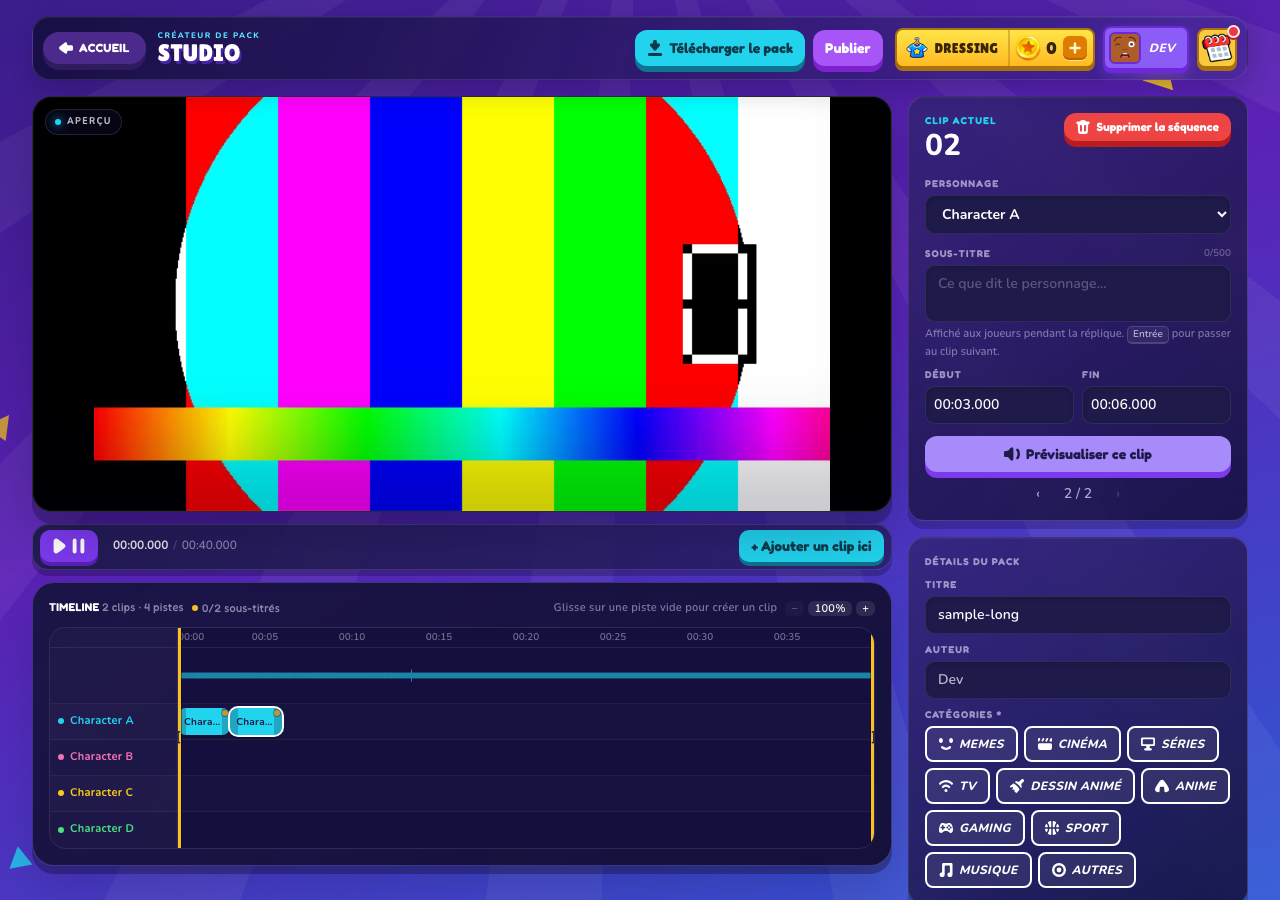
To create a pack, a PC is still the easiest: you import your video, then cut the lines on a timeline, which is much more precise with a mouse. You can do it on mobile, but it takes more patience.
Something is not working: quick fixes
• No sound, or no mic found: check that the mic is allowed for trytoact.com (see above) and, on PC, that it is selected in the settings.
• The video won't start: reload the page. On iPhone, check that Low Power Mode is not blocking playback and that your connection is stable.
• My voice is too quiet or distorted: adjust the mic volume on the recording screen and move closer to the mic.
• I hear echo in my take: use headphones, and turn off headphone monitoring if you are not wearing any.
• Nothing helps: update your browser or try another one, then get in touch through our contact page.
Looking for more ideas? Read how to host a game night with friends, or jump straight into the pack library.
Frequently asked questions
Does TryToAct work on iPhone and Android?
Yes. TryToAct runs in your phone's browser (Safari, Chrome…), on iPhone and Android alike, with nothing to install.
Is there a TryToAct app to download?
No app needed: everything happens on trytoact.com. You can add the site to your home screen to open it like an app.
Is TryToAct free?
Yes, TryToAct is free on mobile and PC. Just sign in with Google, Discord or Twitch to play.
Do I need a special mic to play?
No, the built-in mic on your phone or computer is enough. A headset with a mic improves the sound and avoids echo.
Why does the scene go silent when I record on my phone?
On mobile, the video is muted during your take so your phone records your voice at full quality. The picture keeps playing: listen to the line just before so you have the rhythm.
Can a phone and a PC play multiplayer together?
Yes, multiplayer works across every device. Share the room's code or link and play together, up to 4 players in a public game.
Are my dubs and coins synced across my devices?
Yes, everything is tied to your account: sign in with the same account on your phone and your PC to pick up where you left off.
How do I unblock the mic if I refused it?
Click or tap the icon to the left of the site address in your browser, allow the mic for trytoact.com, then reload the page.